TechSee Instant Mirroring
- 3.8
- Rating
- 100.00K
- Installs
- Free
- Price

 Analysis by App-foxy
When a technical problem is difficult to explain over the phone, TechSee Instant Mirroring takes a refreshingly practical approach: it lets a support representative see what is happening on an Android device instead of relying only on a customer’s description. I found that idea more useful than the app’s very short store wording suggests. This is not a general-purpose messaging tool or a remote-control replacement. It is a focused communication app built around visual assistance, and its value appears when words, screenshots, or a long list of instructions are not enough.
My overall view is positive but specific. The app can shorten the distance between “I cannot find the setting” and “I can see exactly what you are seeing,” particularly for family support, service desks, and guided troubleshooting. At the same time, it depends on a support interaction already being in progress, so it is not something most people will open casually every day. I would recommend it to users who regularly need visual help on Android, but I would not install it expecting a standalone video-chat experience.
How the visual support experience works in practice
The central idea is screen mirroring for support. Instead of describing a confusing menu, an error message, or an installation step, the person receiving assistance can share the relevant view with the helper. That changes the conversation from guesswork into observation. In my experience, this matters most when two people use different vocabulary for the same problem: one person says “the button disappeared,” while the other can immediately identify the screen and guide the next action.
You May Also Like

 Blood Strike: 2.5 Anniversary
Blood Strike’s Loadouts Turn Every Drop Into a Tactical Gamble
A close look at Blood Strike’s custom loadouts: how fast access to signature weapons reshapes its battle royale rhythm, rewards preparation, and narrows the gap between fights.

 Pandora - Music & Podcasts
Pandora’s Music Is Easy to Start, but Harder to Recover
Pandora’s strength is its low-effort path from a seed to a station. Its weak spot is how much confidence it asks you to place in connection, setup, and quiet recovery.

 8 Ball Pool
 Is Built on Rivalries, Rematches, and Routine
A close look at the rivalries, rematches, shared routines, and unanswered safety questions that turn a quick pool match into a persistent mobile community.

 Samsung Music
’s Quiet Strength Is Playing What You Already Own
Its reach comes less from spectacle than from dependable access to a personal library. That simplicity is both the app’s strongest retention engine and its ceiling.

 AccuWeather: Weather Radar
AccuWeather Review: A Quick, Clear Forecast for Everyday Decisions
For everyday plans, the best forecast is the one you can understand quickly. AccuWeather makes rain timing, radar, and local conditions easy to act on, with a few trade-offs.

 Hill Climb Racing
Why Hill Climb Racing Still Turns Crashes Into One More Run
A tiny car, a bumpy hill and one more upgrade: Hill Climb Racing keeps resurfacing because its simple chaos makes every near-miss feel personal.
More From Our News Desk
View All News


The app’s role in the communication category is therefore quite different from ordinary chat applications. A typical messenger is designed for conversation, file exchange, or calls between people who already know how to communicate. TechSee Instant Mirroring is more task-focused. Its purpose is to make a support conversation clearer by adding the device display as shared context.
A realistic example is helping a relative configure a new Android phone. On a normal call, I might ask which menu is open, whether a switch is visible, and what text appears underneath it. That can become slow and frustrating, especially when the person is not comfortable with technical terms. With visual mirroring, the helper can orient themselves much faster and explain the next step using the actual screen rather than an imagined version of it.
That workflow also reveals an important boundary: the app is most useful when another person is actively providing support. It does not replace the support person, and it does not turn a difficult task into an automatic repair. The benefit comes from shared visibility, not from the app making decisions on the user’s behalf.
Why seeing the screen is better than collecting descriptions
The strongest part of the experience is the reduction of ambiguity. A customer may misname a menu, overlook a warning, or describe an old screen from memory. A support agent working only from those details can spend several minutes following the wrong path. Visual access gives the conversation a common reference point and makes instructions more precise.
I also see value in situations where the problem is not a fault at all, but a navigation issue. Someone may be unable to locate a privacy option, a connection setting, or an account-related control. A conventional call can solve that eventually, but it often requires a slow sequence of questions. Mirroring allows the helper to recognize the user’s position immediately and give shorter, more relevant directions.
There is a useful trade-off here. Sharing the screen can expose information that would never be spoken aloud, including notifications or account details visible in the background. That makes timing and preparation important. Before starting a support session, I would close unrelated screens, hide sensitive notifications where possible, and avoid opening personal messages while the display is being shared. The app makes assistance clearer, but the user still has to decide what should be visible.
Small habits that make a support session smoother
I would begin by describing the goal in one sentence before mirroring starts. Saying “I need help finding the connection setting” is more useful than simply announcing that the screen is being shared. It gives the helper a target and reduces the chance of wandering through unrelated areas.
A second practical habit is to keep the device steady and move through menus slowly. Fast tapping can make it harder for the person on the other end to follow the sequence, while repeated back-and-forth navigation creates confusion. The best use of this app is not passive viewing; it is a guided exchange in which the user performs the actions and the helper explains what to look for.
For support teams, I think the most valuable workflow is to use the visual session after basic questions have already established the problem. Starting with a short description helps the representative know whether the issue concerns settings, an application screen, or a broader device behavior. Mirroring then becomes a targeted diagnostic aid instead of an unfocused live feed.
One less obvious benefit is educational. When a helper points out where a setting lives on the actual device, the user may remember the route for next time. That makes the session more useful than simply receiving a written instruction copied from a help page. The user sees the relationship between the screen, the label, and the action in context.
What TechSee Instant Mirroring does well—and where it falls short
The app’s clearest strength is focus. Its store summary presents it as instant mirroring for Android, and that description matches the reason I would choose it: visual support without forcing the user to explain every detail. The developer is listed as Techsee Google Developer Account, and the app has built a modest but meaningful presence, with over one hundred thousand installs and an average rating of 3.8 from around one hundred fifty ratings. Those figures suggest that people do find the concept useful, while also indicating that it is not universally frictionless.
I would not interpret the rating as a verdict on the idea itself. Support tools are often judged by the whole interaction, including the helper’s quality, the device being assisted, and the network conditions. Still, the score is a useful reminder to keep expectations realistic. A visual-support app can improve communication without guaranteeing a quick resolution every time.
Another strength is accessibility of entry. The app is free, carries an Everyone content rating, and supports Android from version 7.1 onward. That broad compatibility makes it more practical for assisting people who do not own recent phones. For families and organizations dealing with a mixed collection of Android devices, that matters more than having a long list of advanced features.
The current version is 1.4.3, which places the app in a mature enough state to be considered for a specific support workflow rather than treated as a novelty. I would nevertheless test it on the exact device involved before relying on it for an important appointment or customer interaction. Android phones vary widely in manufacturer interfaces and system behavior, and a support process should be checked where it will actually be used.
The meaningful weakness: it is dependent on context
The main limitation is not that the app lacks the ambition of a full remote-support suite; it is that its usefulness is narrow by design. If I simply want to talk with a friend, share a photo, or conduct a normal video call, a familiar messenger is more natural. If I need a professional remote-administration workflow, a dedicated remote-support product may be a better fit. TechSee Instant Mirroring sits between those options, and that middle ground will suit some people but feel unnecessary to others.
The experience also depends on both sides understanding what is happening. A less confident user may hesitate before sharing a screen, especially if they are unsure whether the helper can control the device or only view it. That distinction should be explained clearly at the beginning of the session. I would tell the person receiving help exactly what will be visible and ask them to stop sharing before opening anything private.
There is also a human limitation that no mirroring tool can remove. Seeing a screen does not automatically reveal why an option is unavailable, whether a service is malfunctioning elsewhere, or whether the user’s account has a separate problem. The helper still needs patience and technical knowledge. In some cases, the visual session may expose the symptom quickly but leave the underlying cause unresolved.
For that reason, I would avoid treating this as a universal first step. If the issue is simple and well documented, a short written guide may be faster. If the user needs to transfer sensitive information, a voice call with carefully chosen screenshots could be more comfortable. If the problem involves several devices or requires ongoing administration, a more comprehensive support platform is likely to offer better control and organization.
How it compares with ordinary alternatives
Compared with a phone call, the app’s advantage is obvious: the helper does not have to reconstruct the screen from verbal clues. Compared with text chat, it avoids a long exchange of screenshots and corrections. Compared with a standard video call, it is more directly centered on the device display rather than on showing a camera pointed at a phone.
Those comparisons also show where alternatives remain stronger. Phone calls are familiar and require little preparation. Text messages leave a written trail that can be revisited later. General video-calling apps are better when the conversation itself matters more than troubleshooting. A dedicated remote-support tool may provide a more complete set of administrative controls for professional technicians.
My preference would be to use TechSee Instant Mirroring for short, focused guidance: locating a setting, understanding what appears on screen, or helping someone complete a device task. I would choose a conventional messenger for ongoing family communication and a specialized service for complex business support. The app earns its place when visual clarity is the problem to solve.
Who should use it, and who should skip it?
I think it is a strong match for people who frequently help relatives with Android phones, especially when those relatives struggle to describe menus or error messages. It also makes sense for support organizations whose conversations often stall because the representative cannot see the customer’s screen. The free price and Everyone rating lower the barrier for these use cases, while the Android 7.1 minimum helps include older devices.
It may also suit a small team that wants a simple visual step in its support routine without asking every user to learn a complicated system. The best results will come when the team has a clear script: identify the issue, explain what will be visible, start mirroring, guide one action at a time, and end the session once the relevant screen is no longer needed.
I would skip it if I wanted a social communication app, a permanent remote-access tool, or a solution that works across every mobile platform. Someone who rarely needs technical assistance may gain little from installing a dedicated support utility. Likewise, users who are uncomfortable sharing their screen should not feel pressured; a carefully cropped screenshot, a voice explanation, or an in-person demonstration may be preferable.
Privacy awareness is especially important for first-time users. I would recommend clearing the notification area, closing banking or messaging applications, and telling the helper when a sensitive screen is about to appear. These are not complicated steps, but they make the difference between a controlled support session and an unnecessarily exposed one.
My final verdict on TechSee Instant Mirroring
TechSee Instant Mirroring is best understood as a visual bridge between an Android user and the person helping them. It does not try to be everything: its value comes from making the device screen part of a support conversation. When the problem is “I cannot explain what I see,” that is a meaningful improvement over a normal call or a chain of text messages.
My recommendation is strongest for families, customer-support situations, and anyone who regularly guides other people through Android settings. I appreciate the focused workflow, broad Android reach, free access, and the way visual context can remove needless back-and-forth. I also appreciate that its limitations are easy to identify: it is not a general chat app, it does not eliminate the need for a capable helper, and screen sharing requires sensible privacy habits.
The app’s 1.4.3 version and established install base make it worth trying for the right purpose, while the 3.8 average rating encourages a measured approach rather than blind confidence. Test it on the device and support process you actually plan to use, explain the session clearly, and keep private information out of view. If your recurring need is guided Android troubleshooting, I would install it. If your need is ordinary communication or full remote management, I would choose a different category of tool.
FAQs for TechSee Instant Mirroring
01What is TechSee Instant Mirroring?
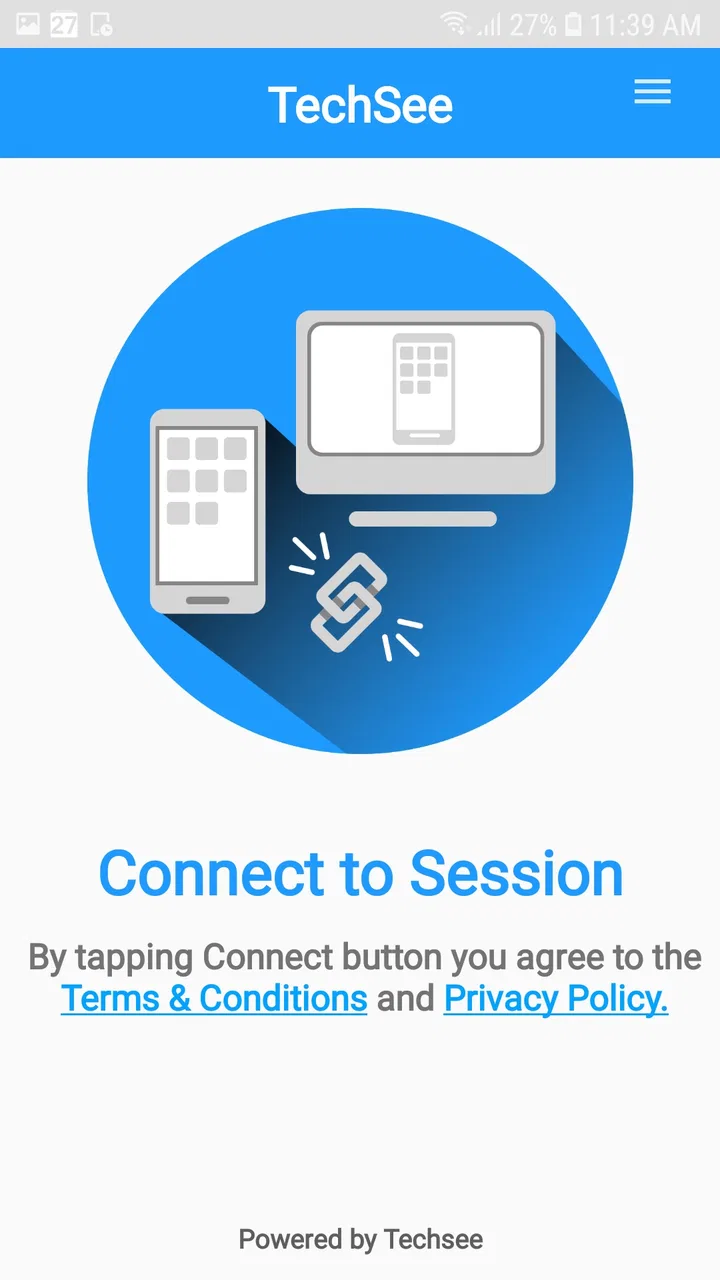
TechSee Instant Mirroring is an innovative app that allows users to share their device screens with customer support agents in real time. This visual engagement platform helps in diagnosing issues more effectively by providing a clear view of the user’s screen, thereby enhancing the support experience.
02How does TechSee Instant Mirroring work?
The app works by establishing a secure connection between the user’s device and the support agent. Once connected, the agent can view the user’s screen in real-time, providing step-by-step guidance or troubleshooting. Users simply need to download the app and follow the instructions to start sharing their screen.
03Is TechSee Instant Mirroring secure?
Yes, TechSee Instant Mirroring prioritizes user privacy and security. The app uses encrypted connections to ensure that data shared between the user and the support agent is protected. No personal information is stored, and users have the control to end the session at any time.
04Which devices are compatible with TechSee Instant Mirroring?
TechSee Instant Mirroring is compatible with both Android and iOS devices. It supports a wide range of smartphones and tablets, ensuring that users can easily connect and share their screens regardless of their device model, as long as they have internet access.
05Do I need to create an account to use TechSee Instant Mirroring?
No, creating an account is not required to use TechSee Instant Mirroring. Users can start a session without the need for registration, making it quick and easy to get assistance. The focus is on providing a seamless and hassle-free user experience.
Pros
- Easy to use interface for quick setup.
- Supports a wide range of devices.
- High-quality video streaming.
- Real-time collaboration features.
- No additional hardware required.
Cons
- Requires a stable internet connection.
- Limited offline functionality.
- Some features may be premium.
- Occasional sync delays.
- Not all devices are supported.

TechSee Instant Mirroring
Gallery